AB Launcher Feature Overview
AB Launcher is a dedicated launcher built for in-car Android devices, such as Android AI Boxes (Carlinkit and others) that connect to the car display over USB and all-in-one head units. With a small footprint, fine-grained split screens, a driver-side UI, and user automation, you can set up your car display the way you want.
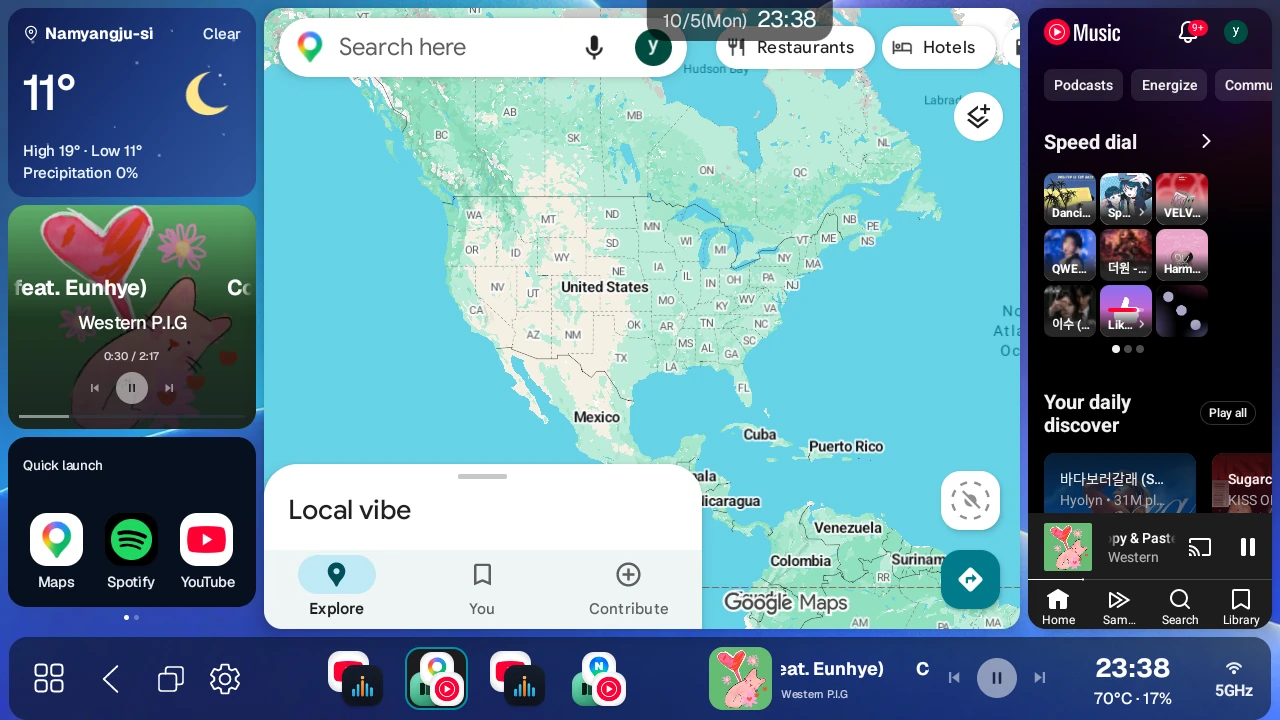
1. A lightweight launcher with a workspace built for the car#
- Small footprint: The install size is small, so it runs comfortably even on lower-spec devices.
- Workspace built for driving: Fine-tune button positions, the sidebar, presets, and UI size for your driving setup, and turn the car screen into a workspace for using several apps together.
Compatible devices#
Carlinkit TBox and Pro series, OttoAibox P3 Pro and Nano, ApplePie, AutoLinkr, AUTOUX, and many other AI Boxes and FYT/MediaTek all-in-one head units can use AB Launcher. This also includes iNavi ICP-100, Mando SMARTAUTO MCP-100, and Mstick4 (rooting required).
Chapter 1 of the user manual starts with recently used devices, followed by model-name lookup and devices that need further checking. It includes TBox Ultra 4 and FYT 7870/7865.
Use the standard version for regular devices and the FYT version for FYT 7870 and confirmed FYT 7865 firmware. Behavior can differ with firmware even on the same product, so check with the Beta trial before buying a license.
2. A screen layout that fits your car#
Set up the screen freely to match a landscape or portrait monitor and the side of the driver's seat.
Driver-side sidebar#
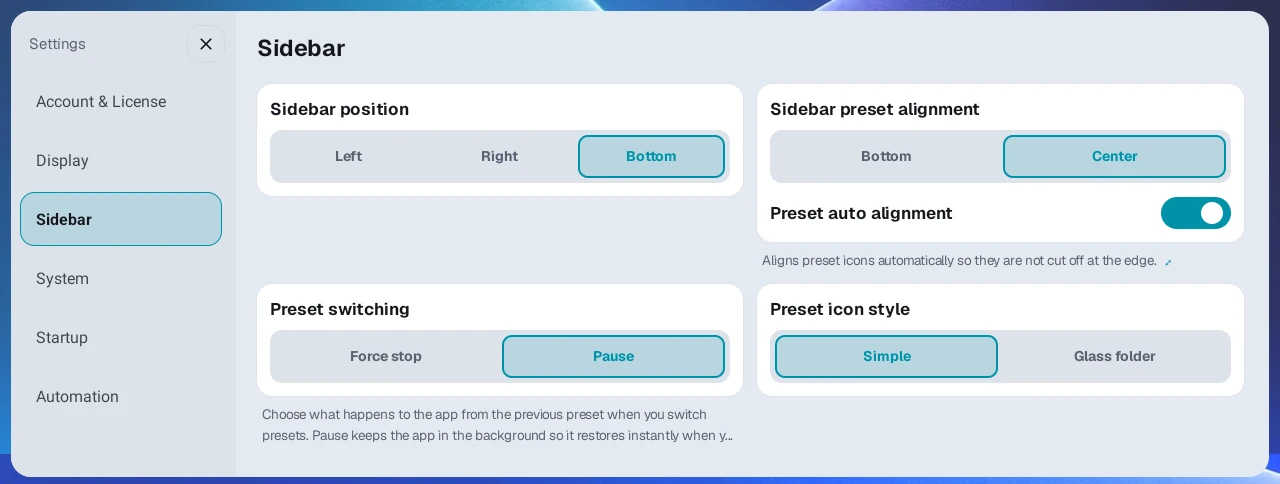
- With the sidebar at the bottom, key buttons such as the app drawer are placed on the driver's side automatically, based on Driver seat position (left/right).
- You can pin the whole sidebar to the left, right, or bottom.
- Keep the sidebar hidden most of the time to use more of the screen. Turn on Launcher sidebar collapsed to choose how the collapsed sidebar opens (Button or Swipe bar) and the button size.
- How the screen moves when the sidebar is briefly expanded is a separate setting (Sidebar expand style). Push panels (the default) slides the split screen aside as the sidebar comes out, and Cover panels leaves the split screen in place and shows the sidebar on top of it.
- An expanded sidebar collapses again automatically after the time you set (1 to 5 seconds, default 3 seconds).
Layout templates#
- Supports Single (full screen), Dual (left/right), Dual (top/bottom), Triple (left/center/right), Triple (top/center/bottom), four mixed 3-way split layouts that place one app on one side and two apps on the other (1 Left + 2 Right / 2 Left + 1 Right / 2 Top + 1 Bottom / 1 Top + 2 Bottom), and a Launch single app mode that opens just one app.
- Adjust the split ratio (20 to 80%) by dragging the divider on screen, with no need to open Settings. Changing the ratio does not restart the apps.
Responsive combo widget#
Each split-screen panel can hold a combo widget as well as an app. Choose one from the Apps / Widgets tabs in the app picker.
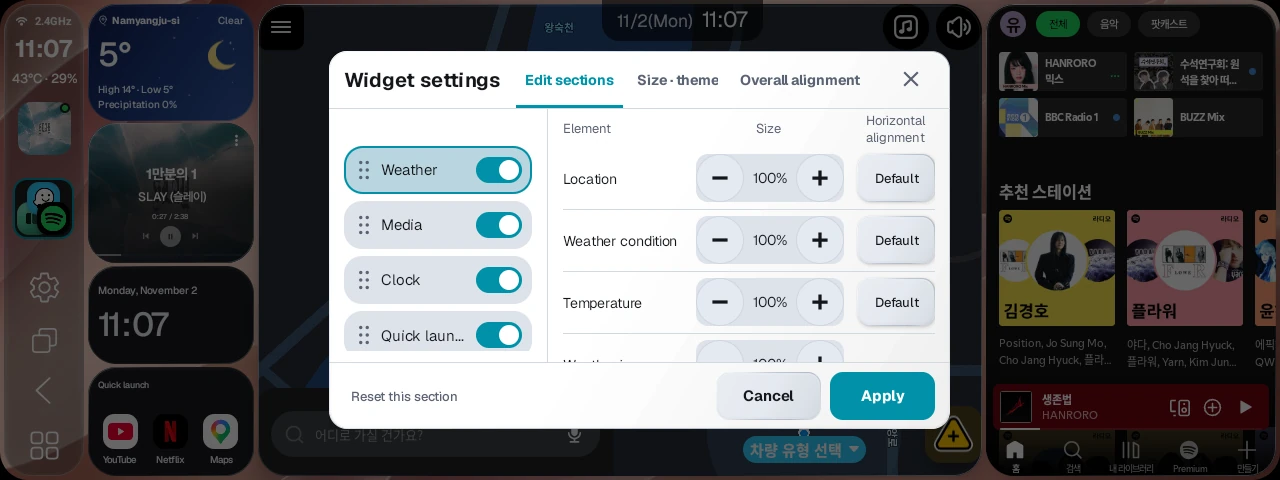
- Turn on and reorder the sections you need from Clock, Weather, Media, Quick launch, and Automation. The layout adapts to panel size and uses multiple pages if everything doesn't fit.
- Long-press for about 1.5 seconds and choose Widget settings from the menu. Edit sections adjusts element text size, horizontal alignment, and weather icon size; Size · theme adjusts the whole widget and theme; Overall alignment sets section vertical placement.
- Order and visibility save immediately. Preview element settings, size, theme, and overall alignment, then confirm with Apply; Cancel reverts them.
- Choose 3 × 1 / 3 × 2 / 3 × 3 for Quick launch, with up to 9 apps. Reducing rows doesn't delete saved apps.
- The media section shows track info and album art and controls previous/next, play/pause, and seeking. When available, ⋮ also opens the media app floating view.
Full screen for video apps#
While YouTube, Netflix, Disney+, Wavve, TVING, or Watcha is playing in one panel of a split screen, touch that panel and a full screen icon appears for 3 seconds. Tap the icon to switch to full screen, then pick a mode from the control bar at the bottom: fill the screen (Cinema mode), original ratio, or the -/+ buttons (zoom in or out by 5% per step).
Zooming video inside a panel#
On Android 13 and later, tap a video panel and use ⋮ beside the fullscreen icon to enlarge video within the panel. Video fullscreen icon must be on. −/+ adjusts from 100 to 400% in 5% steps. The menu may not appear depending on panel width or output method.
Swapping panel positions (Swap and Cross)#
- Press and hold the divider for about 1.5 seconds, and a swap or cross runs right away depending on where you pressed.
- On a vertical divider that splits left and right, press the upper half; on a horizontal divider that splits top and bottom, press the left half. This is a Swap: each panel keeps its ratio and only the apps trade places.
- Press the lower half of a vertical divider or the right half of a horizontal divider for a Cross: the apps and their ratios are exchanged as a whole.
- Double-tap the divider to run the same action right away. Where the second tap lands decides between swap and cross, and no selection menu opens.
- In a triple layout, you can swap two neighboring panels.
- Drag to swap: Press inside a panel and drag across the divider into the next panel (including panels above or below). The borders of both panels light up, and the panels trade places when you release. Passing through the upper half of the divider (the left half on a horizontal divider) gives a swap, and passing through the lower half (the right half on a horizontal divider) gives a cross, the same rule as pressing and holding the divider.
- Apps are not reloaded when panels trade places, so a playing video or navigation screen keeps running without interruption.
Display mode (Dark and Light)#
In Settings → Display, pick Dark or Light under Display mode and tap Apply. The launcher restarts with the new colors. The selected mode also applies to the launcher's dialogs and the Settings screen.
3. Floating ball#
Even while you use another app, the floating ball at the edge of the screen gives you quick access to Back, Home (return to the launcher), Recent apps, the app drawer, and Settings.
- Recent apps appear as cards so you can switch apps or close them one at a time or all at once.
- You can set it to stay hidden or translucent when idle, and you can turn off the device's own OEM floating ball so only the launcher's floating ball is used. Turning off the device's built-in floating ball works only on supported devices.
- Available to everyone, regardless of license.
4. Audio control#
- Start launcher at max volume: Raises media volume to the device maximum when the launcher starts after ignition, and again every time you return to the launcher screen (for example with the Home button), so you don't have to turn the volume up each time. Turn it off if you prefer a lower volume. Turn it on in Settings → Media & Volume → Audio enhancement.
- Automatically lower media volume during navigation: When a navigation voice prompt plays, only music and video sound is lowered automatically so you can hear directions clearly. It automatically recognizes navigation apps in general that play standard guidance prompts, and you set the music volume kept during prompts (10 to 100%, default 50%) with a slider. Available with a Pro license or the Beta trial.
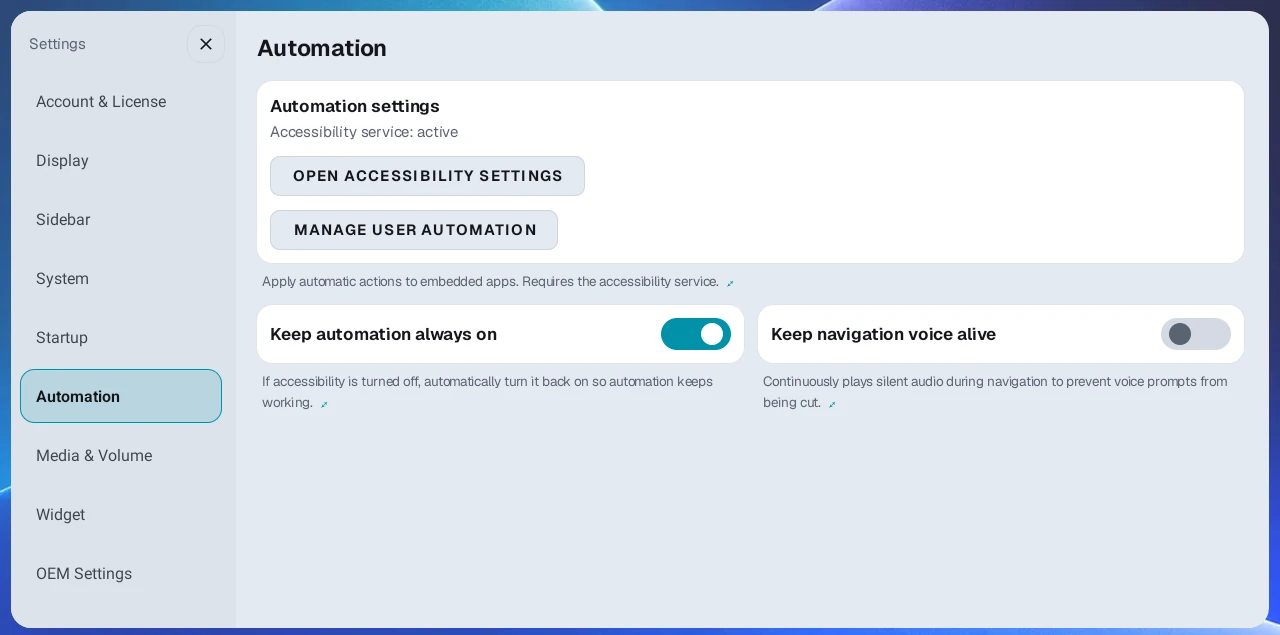
- Keep navigation voice alive: When you run only navigation without playing music, this reduces the end of voice prompts getting cut off on some devices. Turn it on in Settings → Automation; it is off by default. The menu appears when the automation helper app is installed with a Pro license or the Beta trial, and once turned on, it keeps working even if your license changes later.
- Equalizer (EQ): In Settings → Media & Volume → EQ, turn on the switch and adjust bass and treble separately within ±10 dB. Works on Android 9 and later.
- Media volume: Keeps the volume buttons as they are and lowers only media sound below the system volume (it cannot raise it). This is an experimental feature that may be unstable, available with a Pro license or the Beta trial.
- Professional sound tuning app (AB SoundFX) integration: From the EQ card in Settings → Media & Volume, you can download and install AB SoundFX right inside the launcher. The install button appears only with a Pro license or the Beta trial, and it does not appear if SoundFX is already installed. Once SoundFX is installed, the launcher's built-in EQ turns off automatically, and it turns back on when you uninstall SoundFX. The launcher also checks for SoundFX updates.
5. User automation (Pro license or Beta trial)#
Record a screen sequence you repeat often once, and the same actions run automatically the next time you open that app. This requires installing the automation helper app and allowing accessibility permission. With a Basic license or in free basic mode, the Automation category itself does not appear in Settings.
- Auto run and control: When an app launches, actions such as closing an ad window or tapping the play button run automatically. You can save up to 5 per app, each with up to 10 steps.
- Two recording methods: Standard, which finds and taps the button even if the layout changes slightly, and Coordinate, which remembers a specific position or swipe.
- Shared automation presets: Get verified automations from Shared presets and apply them right away (for example, YouTube Music playback). Shared presets are curated per country, so the list offered may differ by region.
- Keep automation always on: On recent Android versions (especially Android 15), if accessibility permission gets turned off, it is turned back on automatically so automation is not interrupted.
- Automation on all-in-one devices: All-in-one devices based on Android 10 (such as the FYT 7862 series) can also use coordinate-mode automation and shared automation presets registered on the server.
- Only one automation can be on per app at a time, and even an automation that is turned off can be run manually by tapping the top clock.
6. Sidebar#
- Action button: Changes automatically to + to save the current screen when no preset is active, Back when a preset is applied, and Done when editing a preset.
- Back control: On the launcher screen, a short press of Back on the sidebar action button, floating ball, or Ultra3 round widget targets the last-touched app panel (or the first if none); a long press targets the second app panel. Widgets and empty panels are skipped. A long press does nothing with only one app panel.
- Quick preset editing: Long-press a saved preset (up to 10) to reorder, delete, edit DPI, or select a panel to edit directly. Press X at the bottom or leave it idle for 20 seconds to end editing without reapplying the screen.
- Launch single app preset: Create a preset that opens one app directly from the sidebar.
- Signal status widget: Shows signal strength, 5G/LTE, and Wi-Fi status near the top of the sidebar. Toggle Show signal status in Settings → Sidebar.
- Sidebar size: Adjust only the sidebar from 60 to 120%, separately from launcher UI size. The default is 100%.
- Display and media settings: Rounded corners, background opacity, and preset auto alignment are supported. Media player shows playback info at the bottom, and album art on left/right sidebars when Media app floating view is also on. Long titles at the bottom scroll once; tap the title to scroll again.
- Recent apps button: Opens recent apps above the action button. Hold for 1 second to clear apps not currently visible and free memory.
7. Convenience settings#
Display#
- Launcher UI size: Fine-tune for your car screen with five-step buttons, a slider, and −/+.
- Per-preset display density (DPI): Set different DPI per preset when text or buttons are too large or small. If the same app is in several presets, use Apply to all presets to update it at once.
- Clock display: Toggle the top and sidebar clocks, choose 12/24-hour time, and choose Clock display style: Time, Time/Signal, Date/Time, or Date/Time/Signal. Long-press to move the top clock per preset; it moves smoothly to its saved position when switching presets. Resizing or swapping panels doesn't move it.
- CPU display: Show CPU temperature or usage on the sidebar: Off, Temperature, Usage, or Temperature + Usage, with °C/°F.
- Status bar: Choose Hidden, Shown, or OEM setting in Settings → OEM Settings.
- Hyperscreen bottom corner adjustment: Moves the app drawer button upward on left/right sidebars, and the bottom sidebar's button group inward from the driver's end. Adjust by 0.0 to 2.5 button heights.
- Video fullscreen icon: Toggle the fullscreen icon for video apps.
- Theme and background: Default/CarPlay themes; seven backgrounds (Black, Gray, Gradient, Light, Sunset, Aqua, Rose); a cropped custom background image added with + and removed by long-pressing; Preset icon style (Simple/Glass folder); and a startup splash video.
- Size UI to visible screen: Calculates UI size from the screen actually displayed. On for new installations; updates preserve your choice.
- Border highlight: Emphasizes widget, panel, and sidebar borders. On for new installations; existing installations keep saved choices, or off if none was saved. Preset icons and the quick launch and automation icons in widgets also get a border.
- Frosted background: Shows a blurred background image behind the sidebar, app drawer, Settings, and empty panels. Applies only to the Sunset, Aqua, or Rose background or a background image you added. On for new installations, off after an update.
- CarPlay shape: Adjust corner roundness, panel spacing, and sidebar floating for the CarPlay theme. Sidebar floating requires Rounded corners. New installations start with Rose, rounded panels, and an inset sidebar.
- Language: Supports 15 languages.
- Widget settings: Settings → Widget includes Default theme for new widgets, Music app, Play music on boot, Media widget memory, Weather region, and GPS.
- Play music on boot: Off by default. When turned on, starts the selected music app even without a media widget on screen. It doesn't play if no music app is set.
- Weather refresh interval: Choose 5, 10, 15, 20, 30, or 60 minutes on the Weather region card. Default: 5 minutes.
- GPS: Toggle GPS for location-based features such as weather in Settings → Widget.
Startup and boot#
In Settings → Startup, set what happens when the device turns on or the launcher starts fresh.
- Startup screen: Choose whether to start with the app layout you used last or with a preset you pick.
- Launch apps after internet connects: Instead of opening split-screen apps right away, waits until an internet connection over Wi-Fi, LTE, or similar is confirmed, which reduces network error pop-ups at startup. If no connection is confirmed, it shows a notice at 60 seconds and launches the apps after 120 seconds. On by default.
- App launch delay on boot: Right after boot, many apps opening at once can run out of memory and freeze the screen. To avoid this, you can delay when apps start launching by 1 to 40 seconds. The default is 2 seconds; if you see this problem, 20 to 30 seconds is recommended.
- Panel binding interval on boot: Sets the interval at which each panel launches its app in turn, from 0.2 to 6 seconds (default 2 seconds). When all three panels of a triple split screen have apps, the memory load is high, so the interval is always fixed at 6 seconds regardless of this setting.
- Startup automation: Build a task list that runs in order every time the launcher starts, such as turning on the hotspot, Bluetooth, or Wi-Fi, launching apps, or enabling accessibility services. This is a boot-time feature, separate from the user automation in section 5 that records actions on app screens. For tasks that need the internet, turn on Run after internet connects to run them once a connection is confirmed; if no connection comes within 60 seconds, only that task is skipped.
Apps and presets#
- Organizing the app drawer: Use ⋮ → Edit at the top or long-press an icon to reorder, hide, restore, or uninstall apps. System apps cannot be uninstalled. App size under ⋮ scales icons from 80 to 200%.
- Opening instance apps (full screen): Use + on the sidebar next to the app drawer to add frequently opened apps. Tap an icon to open it in full screen inside the launcher, tap again to hide it, and return home to close it. Long-press a saved icon to add or remove shortcuts. Separate from Launch single app presets.
- Preset switching: Choose what happens to apps from the previous preset. Pause (default) keeps them in the background for immediate restoration; Force stop closes them to free memory.
- Full reset: Long-press the app drawer button to close all apps and restart the launcher.
- Quick Wi-Fi/hotspot toggles: With Pro or the Beta trial and the automation helper app installed, tap the top clock to open manual controls and toggle Wi-Fi/hotspot. Works on widget-only screens and while waiting for internet after boot.
- Default home app: Open the system home app picker to set AB Launcher as default.
- Check for updates: Find the latest version in Settings → Account & License.
- User manual and release notes: Open them on the device or scan a QR code to read on your phone.
Lab#
Settings → Lab includes Split-screen compatibility mode for Android 10 and Preview builds on supported devices. Changing compatibility mode restarts the launcher after confirmation; turn it off if touch doesn't work correctly. Preview/release switching requires a versionCode no lower than the installed version.
Split Apps & Touch#
Set app-driven rotation prevention and output/touch methods in Settings → Split Apps & Touch. Output selection requires Android 12+, touch selection Android 11+. Direct Output (Recommended) cannot be combined with Fast touch response.
Long-press a panel to open its menu, Drag a panel to swap positions, and Use divider touch are on by default and can be turned off separately. Disable gestures that interfere with app long presses or video seeking. Widgets and empty panels remain editable by long-pressing.
Steering buttons#
Settings → Steering buttons includes the existing voice-button action and new button learning. See the user manual's voice-button section for the license requirements of app launching, TMAP, other navigation voice activation, and automation.
Steering wheel buttons (learn) is for AI Boxes; all-in-one head units aren't supported. Prepare the automation helper app and Accessibility, save a button through Manage buttons → Learn a new button, then assign short, long, and double presses. Use steering button actions is off by default and must be on. Double press needs a signal check; assigning it delays a single press by about 0.3–0.6 seconds.
Supports music controls, media app floating view, apps/automation, preset/sidebar controls, app panel swapping, and Open app in largest panel / return. Some cars or buttons don't pass signals. Allow control from other apps is a separate switch allowing navigation voice and automation requests from apps such as Tasker; it is off by default.
Media app floating view#
Turn on Media app floating view in Settings → Widget to open the playing app from below without changing the panel layout. Open it from sidebar album art, ⋮ in combo media, or an assigned steering button. Left/right album art also requires Media player under Sidebar. A green dot indicates availability.
Off by default. Supports Android 12+; Android 10 requires Lab's Split-screen compatibility mode. Android 11 isn't supported. An app already visible on screen isn't opened again in floating view.
Settings backup and diagnostics#
Use Settings → Account & License → Back up and restore settings to save or import an encrypted file. Files are saved in Download/ab_backup; licenses and OEM settings aren't restored.
For problems, share the receipt number from Send diagnostics in the same category, plus the device model and symptoms. System logs may include records from other apps; read the notice before sending.
8. Ultra3 round display widget#
Shows clock, weather, and music widgets on the round secondary display of Carlinkit Ultra3-series devices. It works only on devices with a round secondary display, and the Ultra3 category appears in Settings only on those devices.
- Choose the clock from three styles: digital, analog, or watch face.
- Weather shows current conditions, the weather 3 hours ahead, and the weekly forecast. For the location, choose Auto (GPS) or a region you pick under Weather region in Settings → Widget.
- Shows album art for the music that is playing and lets you control playback.
- On the shortcut page, swipe through presets to pick one, and use the Home, Back, and panel swap and cross buttons.
- Supports Rotate 180° for displays mounted upside down.
9. OEM Settings#
Settings for manufacturer (OEM) features. The category appears on all devices, and some items appear only on supported devices.
- Status bar: Choose how the status bar at the top of the screen appears: Hide (the default), Show, or OEM (use the device's built-in status bar as is). Shown on all devices.
- Reset OEM density settings: Some devices pin the screen size (density) of certain apps on their own, which can keep the launcher's UI size or per-preset DPI settings from taking effect. This setting finds those pinned values and resets them in one go, and the device reboots after the reset.
- OEM floating ball: Choose Always on, Off, or Device default for the device's own floating ball.
- Hide OEM navigation bar: Turn the device's built-in navigation bar, which stays on the left side of the screen, off or back on. A reboot is required to apply it, and it appears only on supported devices.
- Settings shortcuts: Touch assist settings opens the OEM floating ball settings, and Android settings opens the stock Android system settings.
- Restore built-in launcher: Brings back the device's built-in launcher that was turned off with Turn off built-in launcher in the Lab. Turn off built-in launcher is an experimental feature for when the device's built-in launcher reappears after every reboot. It is in the Lab because on some devices turning it on can stop the device from booting.
10. Licenses and device management#
- Account-based licenses: A purchased license is linked to your Google or email account, so you can restore it with the same account even after changing devices. However, a Basic (lifetime/perpetual) license is locked to the first device it was registered on and cannot be moved to another device.
- QR device registration: In My Page, tap Add device, then scan the Add-device QR shown in the launcher under Settings → Account & License to register the device to your license. To disconnect a registered device, tap Unlink in the device list in My Page.
- License tiers:
- Basic (lifetime/perpetual): Provides the core launcher and split-screen features.
- Pro (subscription, for 1, 2, or 3 devices) and Pro Lifetime: Also provide advanced features such as user automation, lowering music during navigation prompts, and AB SoundFX installation.
- Beta trial: Try the advanced features before you buy.
- If you have no license after the trial ends, the launcher switches to free basic mode: the left/right split ratio is fixed at 7:3, the theme is fixed to CarPlay, and only the first of your saved presets can be launched.